
Checked October 26, 2026
Baggage X-ray Guide: Contraband and Bag Searches
Read the luggage scanner, recognize the posted contraband categories and inspect a bag before making the pass or deny decision.
Quick answer
Read the X-ray after it finishes, compare the shapes with the in-game contraband notice and inspect the case when needed. Use the labeled Pass or Deny control for the current bag.
Continue: Body ScannerCheckpoint sequence
Follow the live prompts; these checkpoints describe the recorded workflow.
Let the scanner reveal the bag
Wait for the bag contents to appear.
- Success check
- The screen displays the current case.
- If it remains unclear
- Do not decide from a blank or still-scanning screen.
Read the supporting evidence
§Let the scanner reveal the bag#
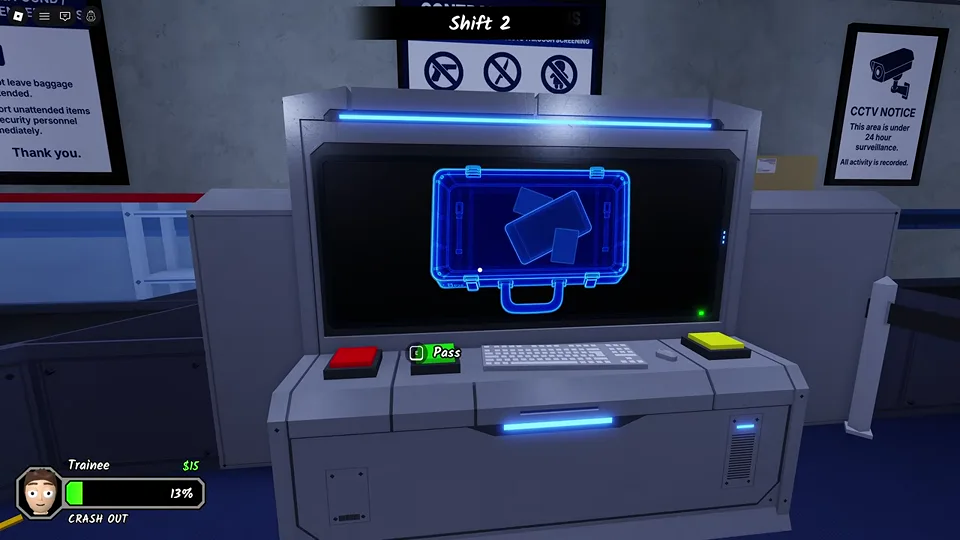
The baggage station has a conveyor, a large screen and decision controls. The recorded screen changes from a scanning state to an outline of the case and the objects inside it. Wait until the contents are visible before deciding.
The X-ray view is a silhouette check. Look at the entire outline rather than one bright object in the middle. If overlapping shapes make the contents unclear, move to a bag search instead of treating an unfinished or obscured image as a clean result.
Use the airport contraband notice
Compare visible shapes with the posted contraband categories.
- Success check
- You can identify the relevant item or a specific uncertainty.
- If it remains unclear
- Use a bag search for overlapping or ambiguous shapes.
Read the supporting evidence
§Use the airport contraband notice#
The notice above the scanner in the recorded build lists firearms, sharp objects and occult objects. Use the current notice in your session if an update changes the categories. This is a game checkpoint, so importing real airport liquid rules or size limits would be misleading.
An ordinary-looking suitcase can still contain a prohibited object. Conversely, a bag containing several shapes is not automatically dangerous. Make the decision from the item category and visible evidence, rather than the passenger appearance or the number of objects.
Inspect the case when the X-ray is unclear
Read the contents in the open-case view when needed.
- Success check
- The unclear item is identified.
- If it remains unclear
- Keep the unresolved item in mind rather than guessing its category.
Read the supporting evidence
§Inspect the case when the X-ray is unclear#
The recorded bag-search view opens the suitcase and labels a visible item as Apple. It also provides an Exit control to return to the checkpoint. Read the actual item labels available in your session when a silhouette is ambiguous.
This frame establishes what a bag search looks like; it does not establish every allowed or prohibited item. An apple in one recorded case is not evidence for a universal food rule. Compare the item with the posted categories and any current objective.

Confirm which control you are using
Read the Pass or Deny prompt for this bag and make the decision.
- Success check
- The bag decision is complete.
- If it remains unclear
- Confirm the highlighted bag belongs to the passenger you are processing.
Read the supporting evidence
§Confirm which control you are using#
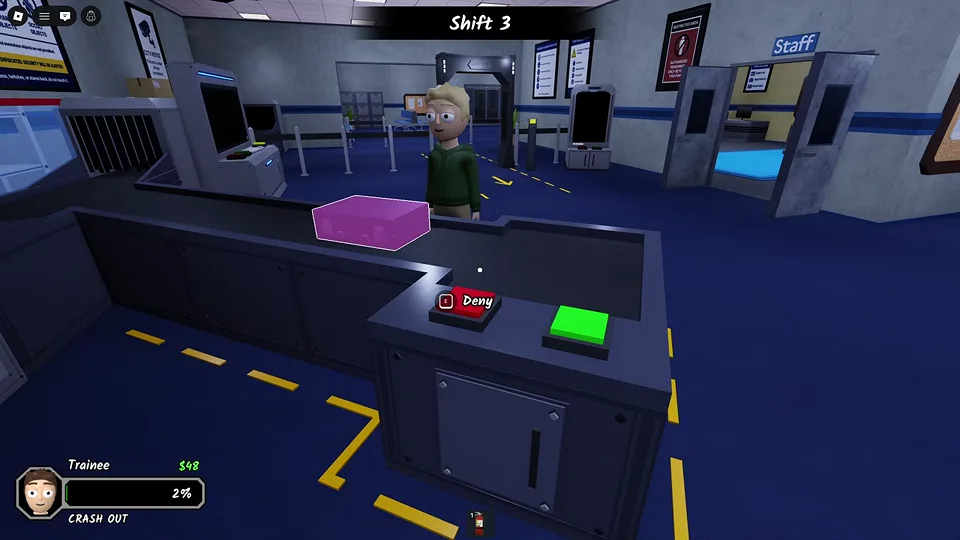
The recorded station exposes Pass on the green control, and a later view shows Deny on the red control beside a highlighted bag. Read the prompt before interacting so you act on the correct case.
If you make a mistake, note whether it happened at the scan, the search or the final decision. Return to that exact stage on the next passenger. A clean bag is only one part of the screening process; continue with the body scanner.
Scope and sources
About this guide
- Gameplay images are from an October 8 recording. Later updates may change layouts, prompts and events. Follow the instructions displayed in your session.