
Checked October 26, 2026
Check-in Guide: ID, Photo and Boarding Pass
Learn the Airport Security check-in desk: inspect ID, process the passenger photo, print the pass and follow the passenger to security.
Quick answer
At the desk, verify the passenger ID, take their photo and issue the pass in the order shown by the check-in poster. Completing this desk sequence does not replace the luggage and body checks.
Continue: BaggageCheckpoint sequence
Follow the live prompts; these checkpoints describe the recorded workflow.
Find the desk equipment
Verify the ID with the current passenger.
- Success check
- The document has been inspected.
- If it remains unclear
- Read the desk poster and find the highlighted ID reader.
Read the supporting evidence
§Find the desk equipment#
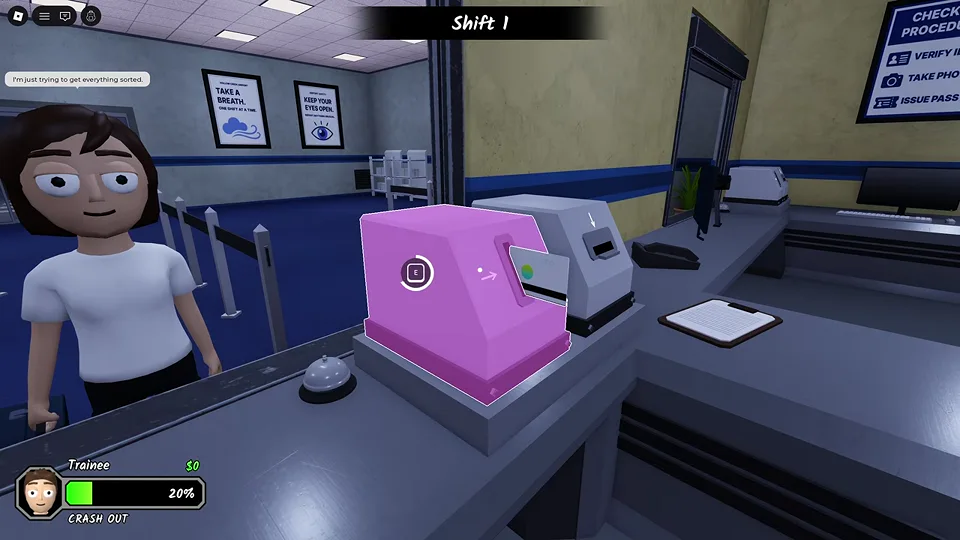
The check-in desk has a camera on a tripod, a photo monitor and two small machines next to each other. In the recorded run, pointing at usable equipment highlights it and shows an interaction prompt. On keyboard, the demonstrated interaction key is E.
The wall poster lists the desk tasks in order: verify ID, take photo, issue pass. Use that sequence as your baseline. Keep the passenger in view while you inspect their document and photo, then move to the printer when the prompt becomes available.
Wait for the photo to process
Use the camera and let the photo process.
- Success check
- The photo-processing stage completes.
- If it remains unclear
- Watch the monitor instead of skipping ahead to the printer.
Read the supporting evidence
§Wait for the photo to process#
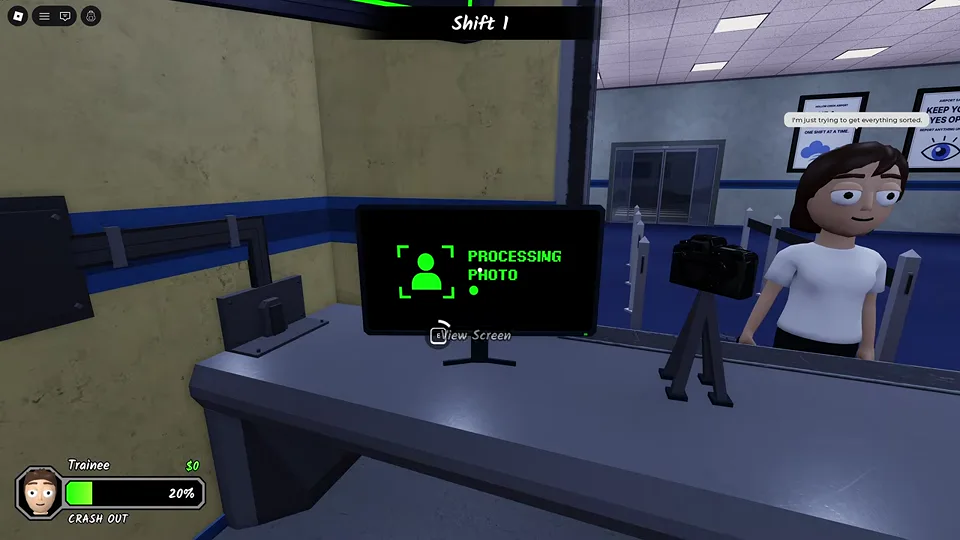
The desk monitor visibly shows PROCESSING PHOTO while the camera step is running. Let it finish before moving on to the pass printer. A processing message is a task state, so it should not be treated as proof that the passenger passed every check.
The official instructions specifically ask you to check the ID and photo. Compare the passenger with the photo available in your session. We have not verified a complete list of document mismatch rules, so this guide does not invent expiry-date, nationality or age thresholds.
Print the pass, then continue screening
Use Print Pass, then track the passenger to security.
- Success check
- The pass is issued and the passenger moves onward.
- If it remains unclear
- Return to the unfinished desk step before interacting again.
Read the supporting evidence
§Print the pass, then continue screening#
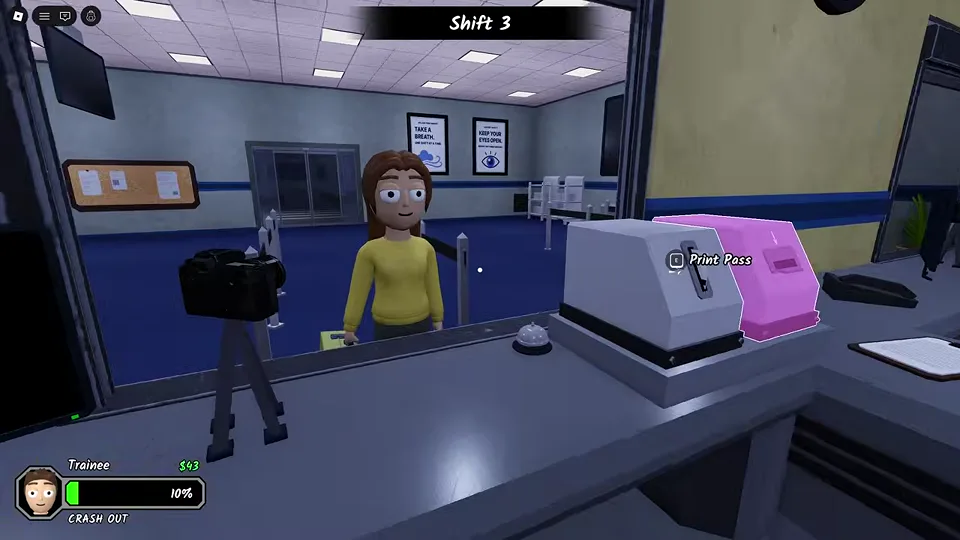
The recorded printer displays Print Pass after the photo step. Interact with the highlighted machine and let the passenger continue. The check-ins remaining board helps you see that desk work is progressing.
Passengers then move toward the security lanes. Keep tracking the person you just processed so you do not confuse their bag or scan with someone else in co-op. A printed pass completes the desk task; it does not prove that the bag or skeleton is normal.
Scope and details
1 sections§If the desk seems stuck#
Start with the last unfinished item on the poster. Look directly at the camera monitor or printer until its prompt is visible. If the photo is still processing, wait for the result instead of repeatedly interacting with unrelated equipment.
In a group, agree who owns the desk and who handles security. This is a suggested division of work, with no claimed hidden team bonus. If another employee is already interacting with the passenger, give them room to finish before repeating the same action.
Questions and answers
Does E work on every device?
E appears in the recorded keyboard prompts. Controller and touch prompts can differ; use the prompt on your own screen.
Can I skip scans after printing a pass?
The developer lists luggage and body screening as separate checks. Finishing check-in alone does not establish that a passenger is safe.
Scope and sources
About this guide
- Gameplay images are from an October 8 recording. Later updates may change layouts, prompts and events. Follow the instructions displayed in your session.